Create a list, fill it, share it, follow your loved ones: every step explained simply, with previews to find your way.
Create a list
A list gathers the gifts for one occasion: a birthday, Christmas, a baby, a wedding… or simply what you'd love right now. You can create as many as you like.
Open the form
On a computer, click "Create a list" at the top right. On a phone, tap "Create", the + button in the middle of the menu at the bottom of the screen.
Give it a name and a few details
Only the name is required: "Jules's Christmas", "Lea's 30th birthday"… If you like, add:
a description to guide your loved ones (sizes, favourite colours, shops);
the event date, shown on the list;
a cover image (JPEG, PNG, GIF or WebP, 5 MB maximum).
New list
List name
Jules's Christmas
Description
Size 6, loves dinosaurs
Event date
12/24/2026
Visibility
PublicDiscoverable and visible to everyonePrivateOnly visible through the share link
Create the list
Choose who can see it
Public: the list appears on your profile and in search, so your loved ones can find it by your name. Private: only people you send the link to can open it.
Confirm with "Create the list"
You land on the "Manage my list" page: this is where you add your gifts and share the list.
Add gifts
Three ways to fill your list, depending on the gift and your habits. They all lead to the same result: a gift with its name, price and photo, ready for your loved ones to reserve.
On a computer, from the browser's address bar. On a phone, with the Share button of your browser or the store's app, then Copy.
Open the add form
In My lists, open the list and tap "Add a gift". You can also go through My account › "Add a gift": you then pick the list in the form.
Paste the link
Paste the address into the "Link to the gift" field: hYune reads the page and fills in the name, price and photo on its own. If nothing happens, click "Fetch details".
Add a gift
Gift link
https://shop.example/wool-throwFetch details
Details fetched: check them before saving.
Merino wool throw
€59.00EUR
Add to list
Check, then save
Every field can still be edited: fix the name, change the photo or the currency if needed, then confirm.
By hand
Open "Add a gift" and leave the link empty
The link is optional: perfect for something handmade, a class, an outing, or an item you spotted in a shop.
Fill in the details
Only the title is required. Add a photo ("Choose an image" or drop it in the frame, it's resized for you) and a price in the currency of your choice to help your loved ones.
Add a gift
Title
Pottery class for two
Image
Choose an image
Price
€85.00EUR
Save
Save
The gift shows up in the list right away, visible to your loved ones.
With the browser extension
The free hYune extension for Chrome, Edge and Firefox adds the product on the open page to one of your lists in one click, without leaving the store.
Add the extension from your browser's store, then pin its icon to the toolbar to keep it handy. On the first click, sign in to your hYune account (email or Google): you only do this once.
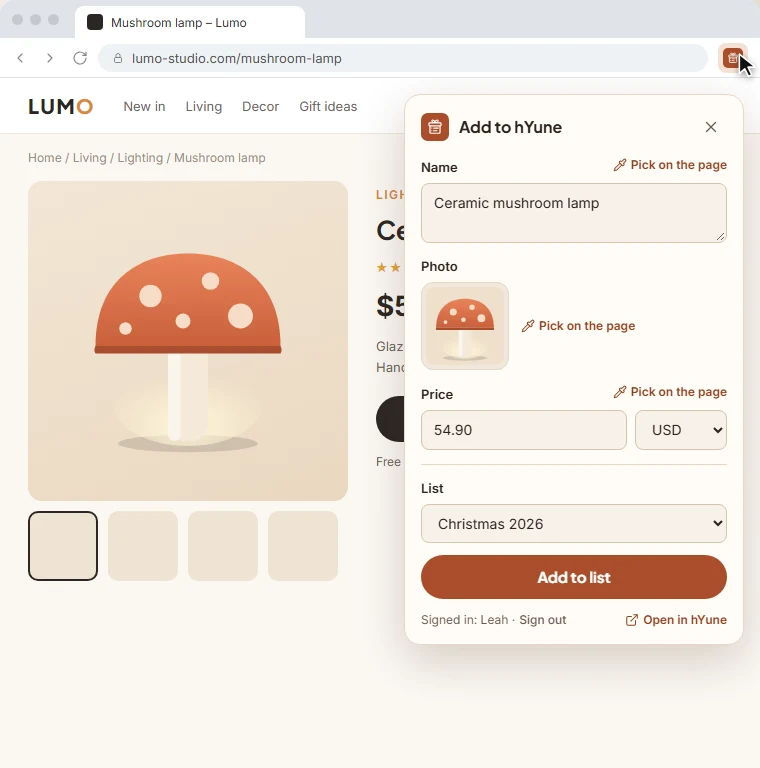
On a product page, click the hYune icon
A panel opens on top of the store, with the product's name, price, photo and link already filled in. Check it and adjust if needed: every field can be edited.
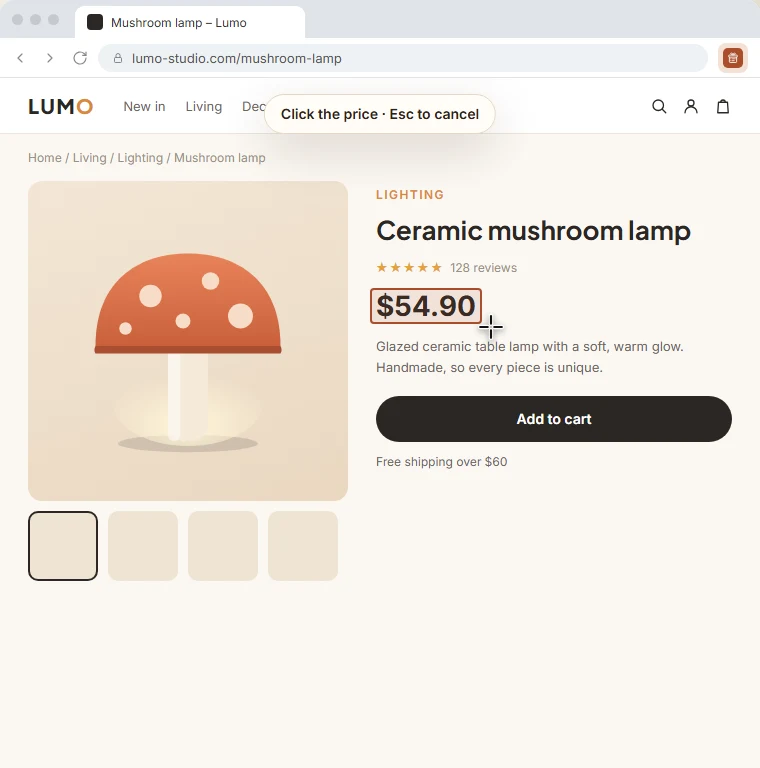
Something missing? Use the picker
If the photo, name or price wasn't detected, click "Pick on the page" next to the field, then click the element you want on the page. It's copied into the panel. Esc cancels.
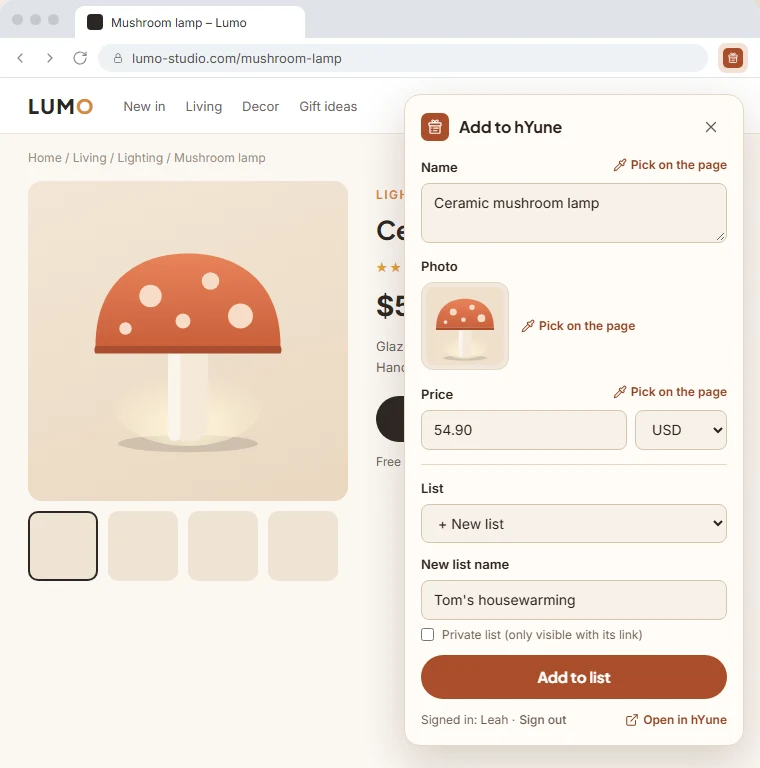
Pick a list, or create one
Select one of your lists, or "+ New list" to create one on the fly (public by default, tick "Private list" so it's only visible with its link). Click "Add to list": hYune remembers the last list you used for next time.
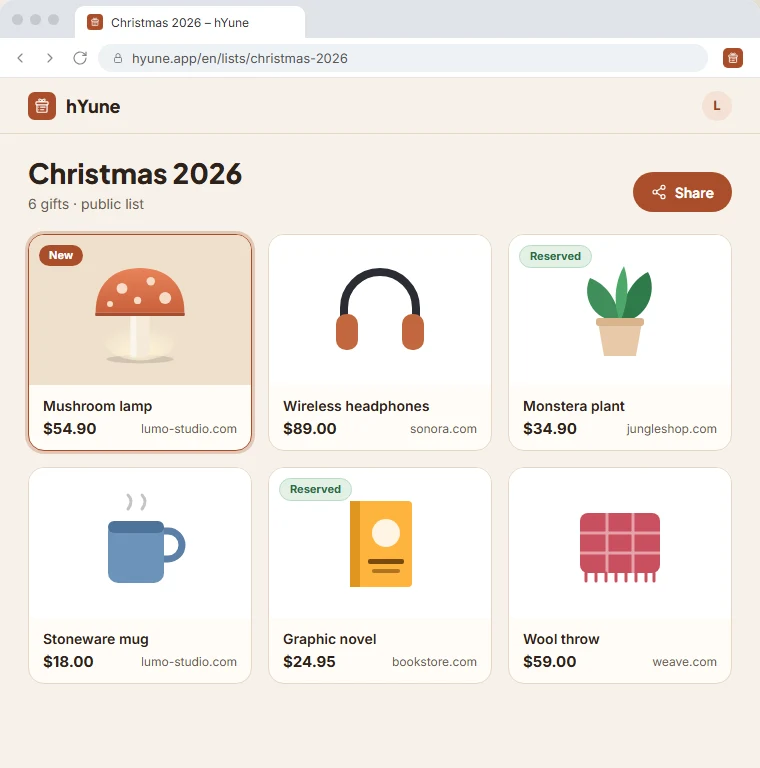
It's in your list
The gift is in your hYune list, with its photo and a link to the store. All that's left is to share it.
Create an account
A free account lets you create your lists, follow your loved ones and find your reservations on all your devices. To view a loved one's list and reserve a gift, you don't need one.
Open the sign-in page
Tap the profile icon at the top right of the screen, then choose the "Create an account" tab. Creating a list or following someone while signed out takes you there too.
The quickest: "Continue with Google"
One click and your account is created with your Google address, with no password to remember.
Or fill in the form
First name, last name, email and password: at least 10 characters, with an uppercase letter, a lowercase letter, a number and a special character. Accept the terms of use and the privacy policy.
Your first and last name are shown on your lists, so your loved ones know who they're from.
Sign inCreate an account
Continue with Google
or
First name
Lea
Last name
Martin
Password
••••••••••••
I accept the terms of use
I have read the privacy policy
Create an account
Confirm with "Create an account"
You're signed in. Whatever you had started is attached to your account: the list you were creating, the person you wanted to follow, and gifts reserved without an account from this browser.
Follow a loved one
Following a loved one means you never have to ask for their lists again: their next lists show up on their own in Following. They don't have to accept anything.
Open one of their lists
With the link they sent you, or by searching for their name or email with Search (only their public lists show up there). Their name, at the top of the list, leads to their profile.
Tap "Follow"
The button sits next to their name, on their lists and on their profile. Not signed in yet? hYune offers to sign you in or create an account, and you start following them right after.
Lea's 30th birthday
LM
List by
Lea Martin
Follow
Instant camera
€89.90
You follow Lea. Their next lists will be waiting for you in Following.
Find their lists in "Following"
The Following menu gathers the lists of the people you follow: upcoming events first, then the others. The "Already reserved" and "Nothing reserved" filters show at a glance who you still need to find a gift for.
Share
Share one list for a specific event, or your profile so your loved ones can find all your public lists, today's and those to come.
Share a list
Open the list
In My lists, tap the list you want to share: you land on "Manage my list".
Tap "Share the list"
On a phone, the share menu opens: Messages, WhatsApp, email… On a computer, the link is copied: paste it wherever you like.
Jules's Christmas
Private · 6 gifts
Edit listShare the list
Link copied! Paste it in a message to share the list.
Your loved ones open the link and reserve
No app to install, no account to create. They pick a gift and tap "Reserve": it turns into "Already reserved" for everyone else, so there are no duplicates. You see which gifts are reserved, without spoiling the surprise for other guests.
L
Lea's 30th birthday
March 12 · 6 gifts · 2 reserved
Instant camera
€89.90
Reserve
Novel box set
€34.00
Reserved by you
Wool throw
€59.00
Already reserved
Share your profile
Your profile brings all your public lists together behind a single link. Send it once: by following you, your loved ones will also get your next lists in their Following menu.